How to Use Smart Playlists in Navidrome (Beta)
Smart Playlists in Navidrome offer a dynamic way to organize and enjoy your music collection. They are created using
JSON objects stored in files with a .nsp extension. These playlists are automatically updated based on specified
criteria, providing a personalized and evolving music experience.
Beta Feature
Smart Playlists are currently in beta and may have some limitations. Please report any issues or suggestions to the Navidrome GitHub issues page.Creating Smart Playlists
To create a Smart Playlist, you need to define a JSON object with specific fields
and operators that describe the criteria for selecting tracks. The JSON object is stored in a .nsp file
Here are some examples to get you started:
Example 1: Recently Played Tracks
This playlist includes tracks played in the last 30 days, sorted by the most recently played.
{
  "name": "Recently Played",
  "comment": "Recently played tracks",
  "all": [{ "inTheLast": { "lastPlayed": 30 } }],
  "sort": "lastPlayed",
  "order": "desc",
  "limit": 100
}
Example 2: 80’s Top Songs
This playlist features top-rated songs from the 1980s.
{
  "all": [
    { "any": [{ "is": { "loved": true } }, { "gt": { "rating": 3 } }] },
    { "inTheRange": { "year": [1981, 1990] } }
  ],
  "sort": "year",
  "order": "desc",
  "limit": 25
}
Example 3: Favourites
This playlist includes all loved tracks, sorted by the date they were loved.
{
  "all": [{ "is": { "loved": true } }],
  "sort": "dateLoved",
  "order": "desc",
  "limit": 500
}
Example 4: All Songs in Random Order
This playlist includes all songs in a random order. Note: This is not recommended for large libraries.
{
  "all": [{ "gt": { "playCount": -1 } }],
  "sort": "random"
  // limit: 1000 // Uncomment this line to limit the number of songs
}
Example 5: Multi-Field Sorting
This playlist demonstrates multiple sort fields - songs from the 2000s, sorted by year (descending), then by rating (descending), then by title (ascending).
{
  "name": "2000s Hits by Year and Rating",
  "all": [{ "inTheRange": { "year": [2000, 2009] } }],
  "sort": "-year,-rating,title",
  "limit": 200
}
Example 6: Library-Specific Playlist
This playlist includes only high-rated songs from a specific library (useful in multi-library setups).
{
  "name": "High-Rated Songs from Library 2",
  "all": [{ "is": { "library_id": 2 } }, { "gt": { "rating": 4 } }],
  "sort": "-rating,title",
  "limit": 100
}
Creating Smart Playlists using the UI
Currently Smart Playlists can only be created by manually editing .nsp files. We plan to add a UI for creating and
editing Smart Playlists in future releases.
In the meantime, if you want a graphical way to create playlists, you can use Feishin, a desktop/web client for Navidrome, that supports creating Smart Playlists:
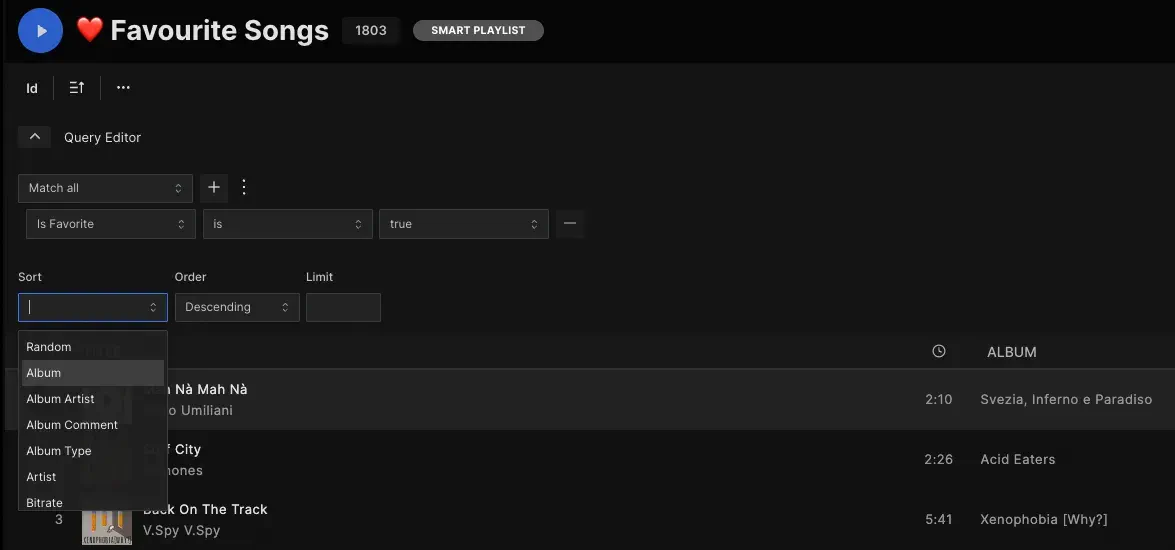
Smart Playlists created/edited in Feishin will be available in Navidrome UI as soon as they are saved.
Importing Smart Playlists
Smart Playlists are imported the same way as regular (.m3u) playlists, during the library scan. Place your .nsp
files in any folder in your library or the path specified by the PlaylistsPath configuration. Navidrome will
automatically detect and import these playlists.
Managing Smart Playlists
Visibility and Ownership
- Visibility: To make a Smart Playlist accessible to all users, set it to ‘public’. This is crucial if you want
to use it in another
.nspfile (withinPlaylistandnotInPlaylist). - Ownership: By default, Smart Playlists are owned by the first admin user. You can change the ownership in the Playlists view to allow other users to manage them.
User-Specific Playlists
Smart Playlists based on user interactions (e.g., play count, loved tracks) are automatically updated based on
the owner’s interactions. If you want personalized playlists for each user, create separate .nsp files for each user
and assign ownership accordingly.
Refreshing Playlists
Smart Playlists are refreshed automatically when they are accessed by the UI or any Subsonic client. This ensures
that the playlist is up-to-date when you view it. To avoid unnecessary load, there is a minimum delay between refreshes.
This delay can be adjusted by setting the
SmartPlaylistRefreshDelay configuration option.
By default, this is set to 5s, meaning that Smart Playlists refreshes are spaced at least 5 seconds apart.
You can adjust this value in the configuration file.
Troubleshooting Common Issues
Playlist Not Showing Up
If a Smart Playlist is not showing up in the Navidrome UI, check the following:
- Check the logs for any errors during the library scan.
- Ensure the
.nspfile is in the correct folder and has the correct permissions. - Ensure the file is correctly formatted and does not contain any syntax errors. Tip: Use a JSON validator to check the file (ex: https://jsonlint.com/)
- Check the playlist’s visibility and ownership settings.
Referencing Other Playlists
When referencing another playlist by ID (using the operator inPlaylist), ensure that the referenced playlist is not
another Smart Playlist unless it is set to ‘public’. This ensures proper functionality.
Special Characters in Conditions
If you encounter issues with conditions like contains or endsWith, especially with special characters like
underscores (_), be aware that these might be ignored in some computations. Adjust your conditions accordingly.
Sorting by multiple fields
You can now sort by multiple fields by separating them with commas. You can also control the sort direction for each field by prefixing it with + (ascending, default) or - (descending).
Examples:
"sort": "year,title"- Sort by year first (ascending), then by title (ascending)"sort": "year,-rating"- Sort by year (ascending), then by rating (descending)"sort": "-lastplayed,title"- Sort by last played date (descending), then by title (ascending)
The global order field can still be used and will reverse the direction of all sort fields.
Deleting Users with Shared Smart Playlists
If you encounter issues deleting users with shared Smart Playlists, check if the playlists are used by other users. See this issue for details.
Editing Playlists
To change the rules of a Smart Playlist, you need to edit the .nsp file directly
(or use Feishin). Changes are automatically detected during the next library scan.
The list of tracks in a Smart Playlist is read-only and cannot be edited directly.
Additional Resources
Fields
Here’s a table of fields you can use in your Smart Playlists:
| Field | Description |
|---|---|
title | Track title |
album | Album name |
hascoverart | Track has cover art |
tracknumber | Track number |
discnumber | Disc number |
year | Year of release |
date | Recording date |
originalyear | Original year |
originaldate | Original date |
releaseyear | Release year |
releasedate | Release date |
size | File size |
compilation | Compilation album |
dateadded | Date added to library |
datemodified | Date modified |
discsubtitle | Disc subtitle |
comment | Comment |
lyrics | Lyrics |
sorttitle | Sorted track title |
sortalbum | Sorted album name |
sortartist | Sorted artist name |
sortalbumartist | Sorted album artist name |
albumtype | Album type |
albumcomment | Album comment |
catalognumber | Catalog number |
filepath | File path, relative to the MusicFolder |
filetype | File type |
grouping | Grouping |
duration | Track duration |
bitrate | Bitrate |
bitdepth | Bit depth |
bpm | Beats per minute |
channels | Audio channels |
loved | Track is loved |
dateloved | Date track was loved |
lastplayed | Date track was last played |
daterated | Date track was lrated |
playcount | Number of times track was played |
rating | Track rating |
mbz_album_id | MusicBrainz Album ID |
mbz_album_artist_id | MusicBrainz Album Artist ID |
mbz_artist_id | MusicBrainz Artist ID |
mbz_recording_id | MusicBrainz Recording ID |
mbz_release_track_id | MusicBrainz Release Track ID |
mbz_release_group_id | MusicBrainz Release Group ID |
library_id | Library ID (for multi-library filtering) |
Notes
- Dates must be in the format
"YYYY-MM-DD". - Booleans must not be enclosed in quotes. Example:
{ "is": { "loved": true } }. filepathis relative to your music library folder. Ensure your paths are correctly specified without the/musicprefix (or whatever value you set inMusicFolder).- Numeric fields like
library_id,year,tracknumber,discnumber,size,duration,bitrate,bitdepth,bpm,channels,playcount, andratingsupport numeric comparisons (gt,lt,inTheRange, etc.). - Multi-Library: Smart Playlists can include songs from multiple libraries if the user has access to them. Use the
library_idfield to filter songs from specific libraries.
Special Fields
random: Used for random sorting (e.g.,"sort": "random")value: Used internally for tag and role-based queries
MusicBrainz Fields
The following fields contain MusicBrainz IDs that can be used to create playlists based on specific MusicBrainz entities:
mbz_album_id: Filter by specific MusicBrainz albummbz_album_artist_id: Filter by specific MusicBrainz album artistmbz_artist_id: Filter by specific MusicBrainz artistmbz_recording_id: Filter by specific MusicBrainz recordingmbz_release_track_id: Filter by specific MusicBrainz release trackmbz_release_group_id: Filter by specific MusicBrainz release group
Any tags imported from the music files, that are not listed above, can be also used as fields in your Smart Playlists. Check the complete list of tags imported by navidrome. You can also add your own custom tags to your music files and use them in your Smart Playlists. Check the Custom Tags for more information.
Operators
Here’s a table of operators you can use in your Smart Playlists:
| Operator | Description | Argument type |
|---|---|---|
is | Equal | String, Number, Boolean |
isNot | Not equal | String, Number, Boolean |
gt | Greater than | Number |
lt | Less than | Number |
contains | Contains | String |
notContains | Does not contain | String |
startsWith | Starts with | String |
endsWith | Ends with | String |
inTheRange | In the range (inclusive) | Array of two numbers or dates |
before | Before | Date ("YYYY-MM-DD") |
after | After | Date ("YYYY-MM-DD") |
inTheLast | In the last | Number of days |
notInTheLast | Not in the last | Number of days |
inPlaylist | In playlist | Another playlist’s ID (see below) |
notInPlaylist | Not in playlist | Another playlist’s ID (see below) |
The nature of the field determines the argument type. For example, year and tracknumber require a number,
while title and album require a string.
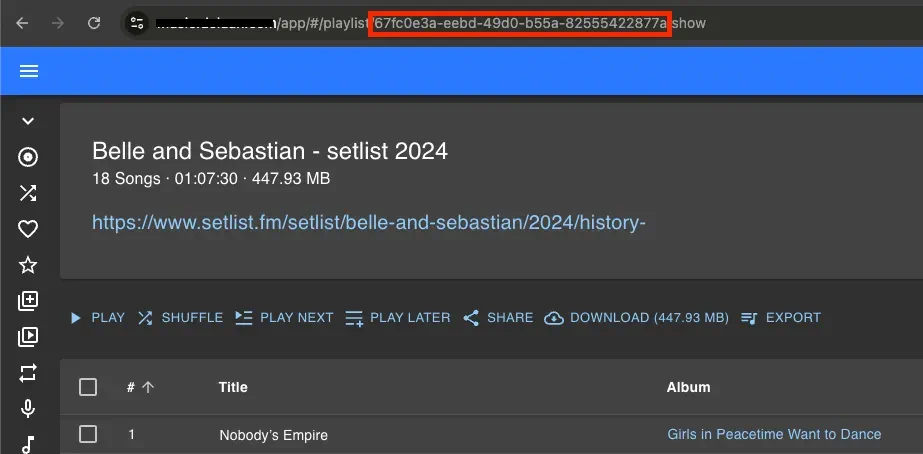
To get a playlist’s ID to be used in inPlaylist and notInPlaylist, navigate to the playlist in the Navidrome UI
and check the URL. The ID is the last part of the URL after the /playlists/ path:
Feedback
Was this page helpful?
Glad to hear it! Please tell us how we can make it even better.
Sorry to hear that. Please tell us how we can improve.